June 24, 2026
Printer Says Paper Jam But No Paper Inside — What's Wrong
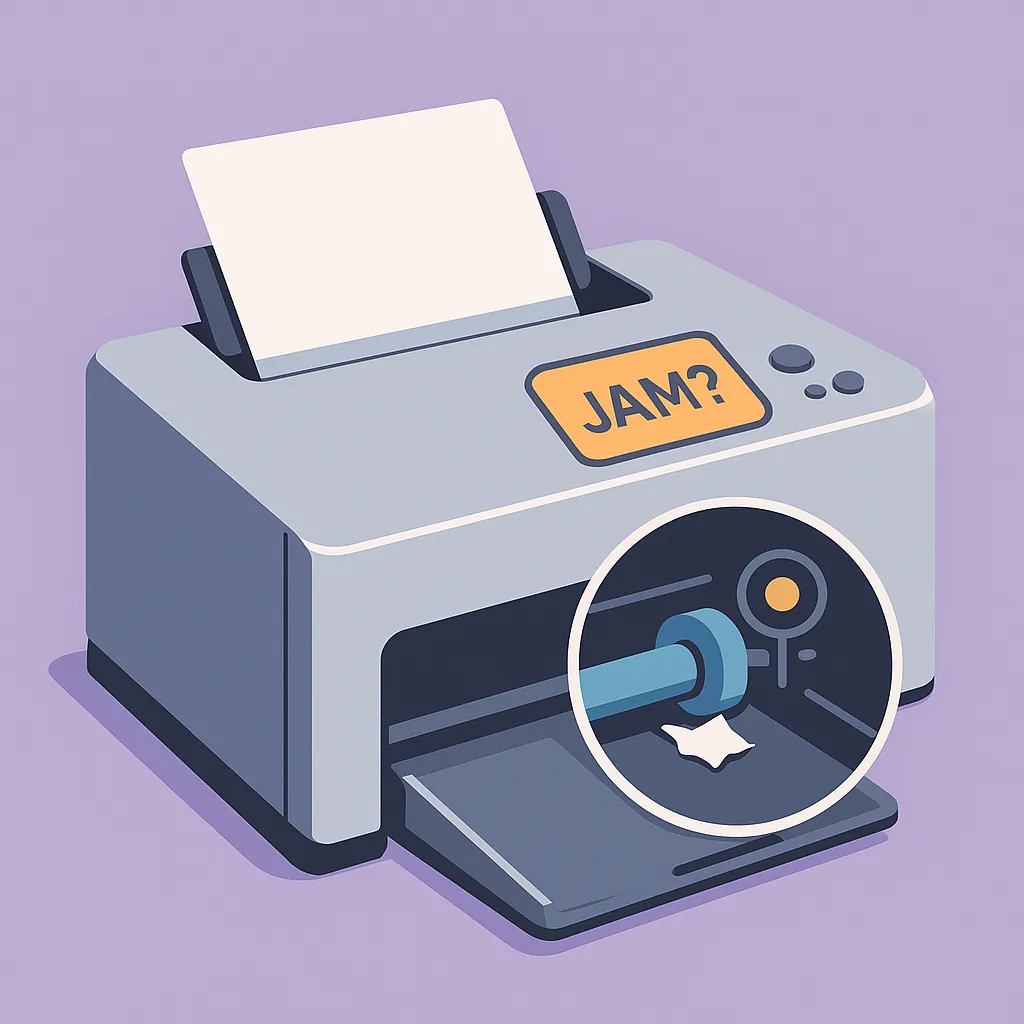
You open the printer, look inside, and there is nothing there. No crumpled sheet, no torn corner, no stray piece of anything. You close it, power cycle it, and the jam error comes right back. That is not user error. That is a specific class of mechanical failure, and it has a few well-understood causes.
We have been repairing printers and copiers across Los Angeles since 1988, and this particular symptom shows up regularly. An interior designer in Sherman Oaks called recently with exactly this problem on her HP 7001. She had already gone out and bought a replacement printer, but she still wanted the HP repaired because the color output was better than anything the new machine was producing. That is a real scenario. The printer had value beyond its sticker price, and the error was mechanical, not cosmetic.
What the Error Actually Means
The instinct is to read "paper jam" as "there is paper stuck somewhere." That is not always what the printer is detecting. What the machine is actually reporting is that paper did not arrive at a sensor at the expected time, or that a sensor is currently reporting a "paper present" state when no paper is there — a printer false paper jam no paper visible condition that looks identical to a real jam.
Printers use multiple sensors positioned along the paper path to track paper movement from the tray through to the output. A fault at any one of them can trigger the jam error. This includes both cases where paper genuinely failed to complete its path and cases where a sensor is stuck in a triggered state with nothing blocking it. The error looks identical either way.
That distinction matters because it changes where you look.
The Four Most Common Causes of a Printer Says Paper Jam But No Paper Error
When a technician looks at this error, there is a sequence to the diagnosis. Here are the four causes that account for most of what we see.
Small paper fragments near a sensor. It does not take a full sheet to trigger a jam error. A torn scrap the size of a postage stamp sitting against a sensor is enough. The main tray is the obvious place to check, but so is the rear access panel and the cartridge or printhead area. HP's support community specifically flags these less-obvious locations because fragments migrate during a failed feed. You are not looking for something easy to spot. You are looking for something easy to miss.
A stuck or broken sensor flag. Inside the paper path, small plastic levers move when paper passes through and spring back when it clears. These are the mechanical triggers for the paper-detection sensors. If one of those flags is stuck in the down position, broken off, or held in place by a piece of debris, the printer reads it as paper present and will not clear the error. A flag that does not spring back freely means something is wrong physically, and a power cycle will not fix it.
Worn or glazed pickup rollers. The pickup rollers grab paper from the tray and pull it into the machine. When those rollers wear down, they lose grip. They may start a feed and then fail to complete it, leaving paper stalled somewhere in the path or dropping it back before it reaches the next sensor. The printer expects paper to arrive and when it does not, it logs a jam. By then the paper may have slipped back out of view entirely, or there may not have been a visible failure at all, just a roller that could not hold on long enough to finish the job.
Dust and debris on the sensors themselves. The sensors positioned near the rollers are in a location that accumulates paper dust over time. Enough buildup and they start generating false signals. This is a distinct cause from the sensor flag problem. The flag may move fine, but the sensor reading it has gone unreliable.
What You Can Try Before Calling Anyone
There are a few things worth trying before scheduling a service call. Work through these in order.
Unplug the printer completely for at least 60 seconds. Not just a restart. Pull the power cord from the wall and wait. HP's support documentation recommends this step for false paper jam errors, as unplugging fully resets the machine in a way a simple power button restart may not.
Inspect the full paper path with a flashlight. Remove the paper tray, open the rear access panel, and open the cartridge or printhead area. You are looking for fragments, not full sheets. A small torn corner is enough to cause this. Take your time and look carefully in the corners and near any visible plastic levers.
Check that visible sensor flags move freely. If you can see any small plastic levers in the paper path, press them gently and make sure they spring back. Do not force them. If one does not move freely or does not return to position, that is your likely cause, but forcing a broken flag makes the problem worse.
If those steps do not clear the error, the cause is almost certainly mechanical, either a worn roller or a failed sensor, in a location you cannot reach or diagnose without opening the machine. That is where a technician adds something that a checklist cannot.
Should You Repair It or Replace It?
This is the question most people are actually sitting with by the time they find an article like this. The honest answer is that it depends on the machine and what it costs to fix it.
For a basic entry-level inkjet you paid $80 for two years ago, a sensor or roller repair may not be economical. There is no point spending more on the fix than the machine is worth. But that calculation changes when the printer has real value to the work you do.
The interior designer in Sherman Oaks had already bought a replacement, and it was not doing the job. Her HP 7001 produced color output that the new machine could not match. For professional work, the replacement cost is not just the price of a new printer. It is the output quality, the workflow disruption, and the setup time. For her, repairing a better machine made more sense than continuing to use an inferior one.
Our printer repair pricing is straightforward. We come out and give you a free estimate. There is no charge just to look at it. If I get there and see the problem and recommend a repair, I will tell you whether I think it is worth doing. That is not a guarantee of outcome, because you never fully know what you are dealing with until the machine is open, but you will know the diagnosis and the cost before you commit to anything. If a repair does make sense and we start the work, the labor rate is $175 an hour with a one-hour minimum. We accept Zelle, Venmo, check, cash, and credit cards, though there may be a fee depending on the card.
If the repair is not worth the cost, I will tell you that too. That is the job.
Why Ghost Jams Keep Coming Back
If you have cleared this error before and it keeps returning, that pattern tells you something. A one-time reset fixes a temporary error state. It does not fix a worn roller or a damaged sensor flag. Those conditions are progressive.
Pickup rollers wear gradually. In the early stages, they may feed successfully most of the time and fail occasionally, making the error look random. It is not random. It is a roller that is getting worse and will eventually fail every time. A broken or partially stuck sensor flag may clear after a full power reset but return because nothing about the physical condition has changed.
We have seen this HP printer ghost paper jam error reported across multiple HP models, including the OfficeJet 8015E, the HP 7001, the HP 9025E, and HP laser models. That is not a defect specific to one printer. It is a class of mechanical failure that shows up across HP's consumer and prosumer inkjet line. The symptom is the same. The underlying cause is a paper path component that has reached the end of its service life.
If you have already looked, already tried power cycling, and the error is still there, you have done what you can do from the outside. The cause is inside the machine, and finding it requires hands-on access to the paper path.
We serve the San Fernando Valley and the greater Los Angeles area, from our base in Van Nuys out to Burbank, Glendale, Pasadena, West LA, Santa Monica, the South Bay, and Downtown. If you are in the area and dealing with this, call us. We will come out, take a look, and tell you honestly what we find.