June 17, 2026
Clearing a Paper Jam Wrong Way Can Damage Your Printer
The printer was working fine. A sheet of cardstock got stuck. You opened the back panel, reached in, pulled the paper out. Problem solved — or so it seemed. Now the machine makes a clicking noise every time you try to print, and nothing comes out.
That is not the jam continuing. That is a new problem, and it started the moment you pulled.
We get calls like this regularly from customers all over Los Angeles. A homeowner in the Valley calls us about her Brother MFC-L3780CDW — working fine before the jam, dead after she cleared it, making a terrible clicking noise. She did not do anything wrong on purpose. She just reached in the way anyone would, pulled the paper out, and the machine has not printed since. After more than 35 years of on-site printer and copier repair in the greater LA area, this is one of the most common patterns we see: the jam itself was survivable. The clearance attempt is what caused the damage. Clearing a paper jam the wrong way is one of the most reliable ways to turn a minor problem into a service call.
When a Jam Clearance Creates a Second Problem
The customer with the Brother had been printing insurance cards on light cardstock. The cardstock jammed. She pulled out the back panel and reached in to remove the stuck sheet. When she was done, the paper was gone — but the machine would not print and had developed a clicking noise that was not there before.
That clicking noise is consistent with internal misalignment or a dislodged component. The jam error may have cleared from the display, but something inside moved during the extraction that was not supposed to move.
We see a version of this in commercial settings too. An office manager with a fleet of HP printers noticed something wrong with the roller on the scanner feed area of one machine and tried to clear it herself. She could not resolve it, and when a technician arrived, that roller issue had become a secondary finding layered on top of the existing problems with the machine.
It is also a known pattern that HP laser printers can develop ink stripes on every page following a jam or clearance attempt. The stripes are not there before the intervention. They show up after. That is the pattern: someone tries to fix something, and the fix creates a print-quality defect the original jam never caused.
What Actually Breaks When You Pull the Wrong Way
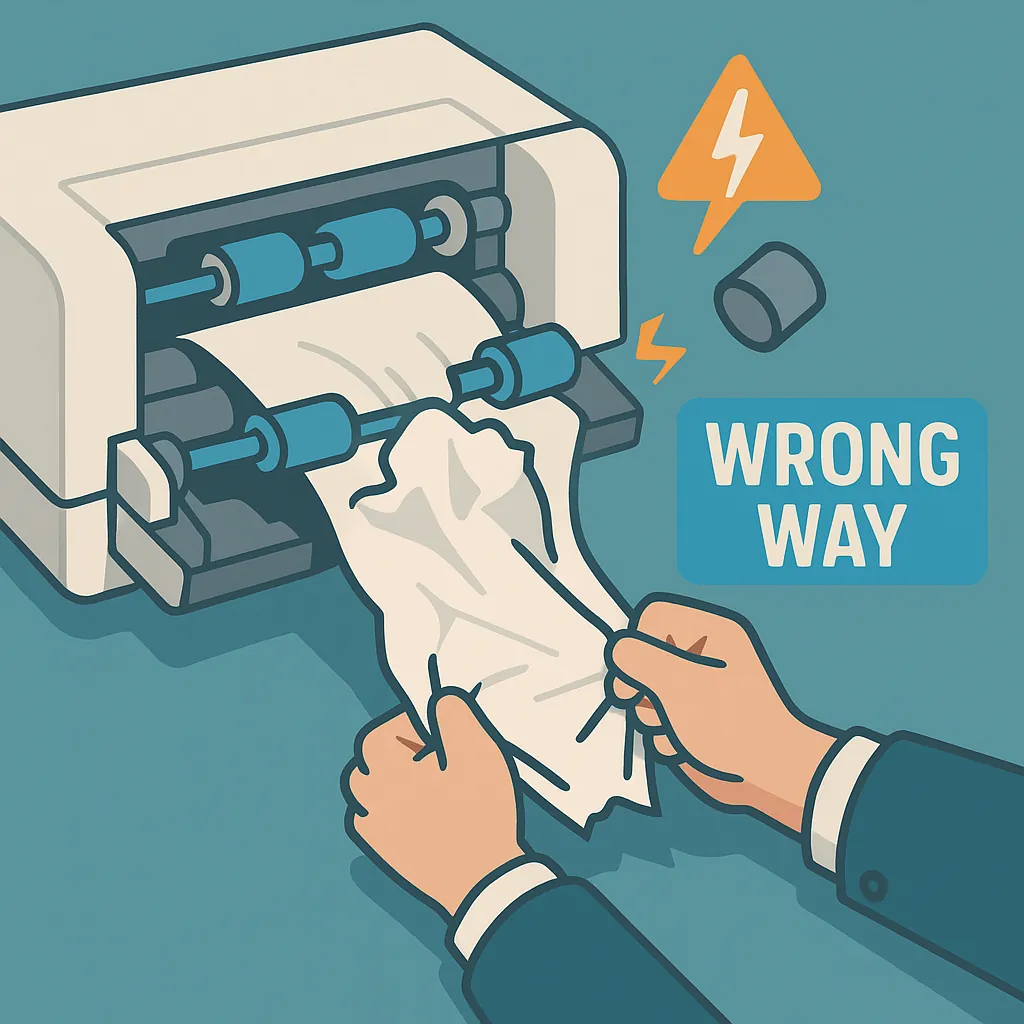
Printers are built around a paper path that moves in one direction. The rollers, gears, and guides that carry a sheet from the tray to the output bin are engineered to apply force and absorb stress in that direction only. When you pull a jammed sheet backward against that path, you are putting lateral stress on components that were not designed to handle it.
The clicking noise that sometimes follows a bad clearance is a specific symptom. It is not a residual jam error. It points to something inside the machine that is now out of position — a misaligned component, a dislodged guide, something that moved when it should not have. That is a mechanical problem, and it requires a technician to diagnose and correct.
Even when you feel confident the paper is fully out, small fragments can stay behind. Those fragments can trip jam sensors and keep the machine locked in an error state even when there is no visible paper left. The machine thinks there is still a jam because a sensor is telling it so.
Reaching into a machine through the nearest available opening also carries risk that most people do not anticipate. Every machine has a manufacturer-specified sequence for accessing the paper path. The Brother MFC-L3780CDW, for example, has a specific procedure for back-panel and front-panel access. When you skip that sequence and reach through a different opening, you can dislodge internal alignment guides or misseat components that you cannot even see from where you are working.
Why Cardstock and Heavy Media Make This Worse
Cardstock is, in the owner's own words, "oftentimes a bit of a challenge." That is not a criticism of anyone who prints on it — insurance cards, business cards, and postcards are legitimate business needs. But heavy media jams differently than standard copy paper.
A cardstock sheet has more mass and rigidity. When it jams, it tends to wedge in more firmly and can jam deeper in the paper path than a standard sheet would. That makes it harder to remove without force, which increases the temptation to pull harder than you should.
Printer trays are calibrated for specific paper weights. When heavy media runs through a tray not configured for that weight, the original jam is more likely to happen in the first place. Then the difficulty of clearing the jam increases the risk of paper jam secondary damage during the clearance attempt. One problem feeds the other.
The Symptoms That Tell You the Damage Is Already Done
If you have already cleared a jam and something feels wrong, here is what to look for:
Clicking noise on every print attempt. This is the most direct signal of mechanical misalignment or a dislodged internal component. The original jam is gone. This noise is something new. That is what the customer with the Brother MFC-L3780CDW described.
The printer won't print after clearing the paper jam, with no new error code. The jam error is gone from the display, but the machine will not do anything. This is consistent with a sensor trip caused by paper fragments still inside the machine, or a component that is out of position.
Streaking or ink stripes on printed pages. When these appear after a jam or a clearance attempt, they can point to a dislodged or damaged transfer component. This is a known pattern following jam clearance attempts on HP laser printers.
A new error code that was not there before. If the clearance resolved the original jam error but triggered a different code, the clearance may have introduced a new fault rather than resolved the original one.
Any one of these symptoms is a reason to stop and call a technician. Running the machine through more print attempts when something is mechanically wrong rarely improves the situation.
What a Safe Jam Clearance Actually Looks Like
For readers who have not yet damaged anything, or who want to know for next time, here are the principles that matter.
Power the machine off before you reach inside. This prevents the machine from trying to move paper while your hand is in the paper path, and it prevents any automatic movement from making the jam worse.
Pull in the direction the paper was already traveling — forward, in the direction of paper travel, not back toward the tray. The components in the paper path are built to move paper in one direction. Pulling against that direction is when things break.
Use the manufacturer's designated access panels in the correct sequence. Every machine has a documented clearance procedure. Do not just open the nearest panel. The Brother MFC-L3780CDW, for example, has a specific sequence for this. There are hundreds of different machines, and each one has its own procedure. If you do not have the documentation, the manufacturer's support page usually does.
If the paper tears during removal, stop and find every piece before you close the machine. A torn corner left inside can trip a sensor and cause exactly the phantom jam error described above.
And if the paper does not move with light, steady, direction-appropriate tension, stop. That is the moment to call a technician. Applying more force is how a manageable jam becomes a service call or a write-off.
When to Stop and Call a Technician Instead
Some situations call for a technician from the start. If you are printing heavy media on a machine that has already jammed once on it, the risk of a second jam and a damaging clearance attempt is real. If the jam does not clear easily on the first try, that is a signal.
If you are already past that point — the jam is cleared, the machine is making a clicking noise after the paper jam, and nothing prints — the question becomes whether the machine is worth repairing. If you find yourself facing this decision regularly, a printer maintenance program can help prevent jams and catch wear before it turns into a service call.
That is a question we answer honestly. If a repair turns out to require five hours of labor, that cost may well exceed what the machine is worth. Our standard is to be transparent about that before any work proceeds, not after. You will know what you are looking at before we start.
For small office and home office machines, DataPrint offers free estimates. If a repair is initiated, the labor rate is $175 per hour with a one-hour minimum. Same-day on-site service is available throughout the greater Los Angeles area, including the San Fernando Valley, Burbank, Glendale, Pasadena, Santa Monica, and Long Beach. We come to your location — that is essentially all we do.
If you cleared a paper jam today and your printer is now clicking, streaking, or refusing to print, you are not alone. We see this pattern constantly across Los Angeles. The good news is that knowing what happened is still useful — it tells a technician exactly where to look and what to expect. Give us a call for a free estimate, and we will give you a straight answer on whether the machine is worth fixing.